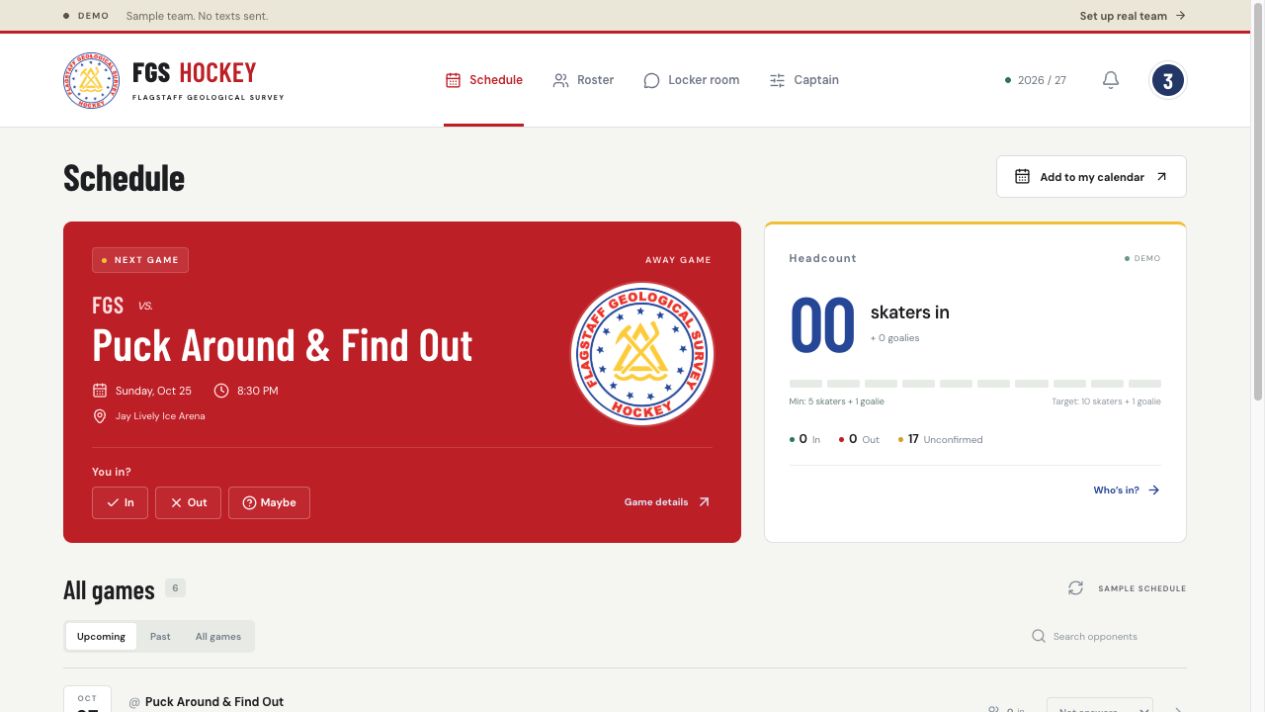
Use the red FGS icon to open the team app from your Home Screen. You do not need an App Store or Play Store download.
 FGS HockeyFGS Hockey
iPhone or iPad · Safari
Open Safari and go to fgs.hockey. If the link opened inside another app, open it in Safari first.
Tap Share (the square with an arrow pointing up). Depending on your Safari layout, you may need to open the browser’s More menu first.
Scroll through the actions (or View More on iPad) and tap Add to Home Screen. If you see Open as Web App, leave it on.
Keep the name FGS Hockey and tap Add.
Return to your Home Screen and open the red FGS Hockey icon. Log in with the same account you use on the website.
Tap the bell → settings gear, choose your alerts, then tap Enable on this device and Allow. Use Send test to check it.
iPhone and iPad push notifications require iOS/iPadOS 16.4 or later and opening FGS from the Home Screen icon.
Android · Chrome
Open Chrome and go to fgs.hockey.
Tap the three-dot menu beside the address bar.
Choose Install and create shortcut → Install. Some Chrome versions show Add to Home screen → Install or Install app instead.
Follow the prompt, then open FGS Hockey from your Home Screen or app list.
Log in with your usual account. Tap the bell → settings gear and turn on Game reminders, Chat notifications, or both.
Tap Enable on this device, allow notifications, and use Send test.
The menu wording can vary by phone and Chrome version. If you only see a shortcut option, you can still use the website; check notification support from the bell.